 ViewWheel
ViewWheel
Keep the context. Keep what matters
Organize comments and replies, highlight useful details, and explore them with AI




We recommend viewing this website on a computer or tablet. ViewWheel is primarily designed for Xiaohongshu in a desktop browser
Start with the comments.
Open ViewWheel
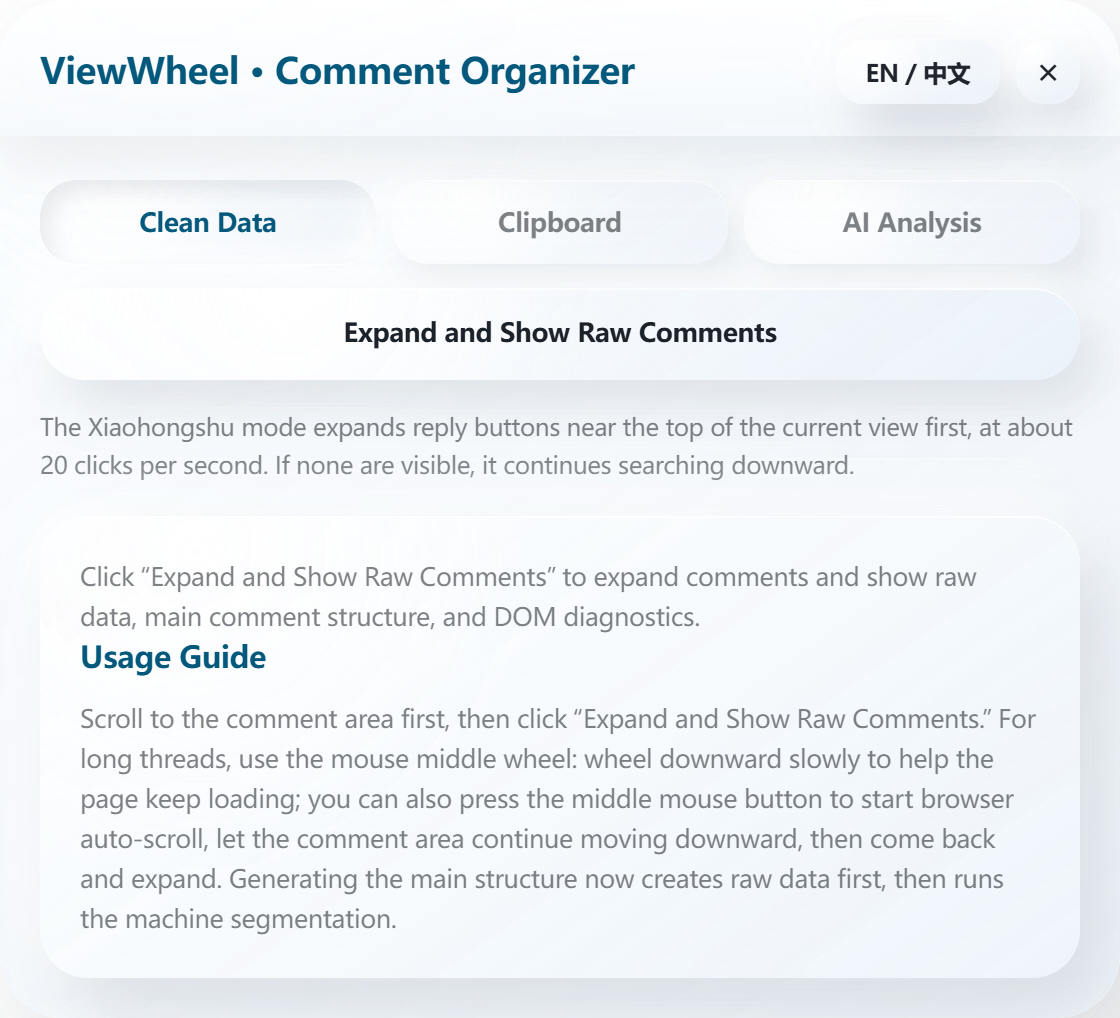
Press the mouse wheel, then move the pointer down.
AI results are examples. Actual results depend on your comments and questions.
Bring it to your comments.
Install ViewWheel in your desktop browser.
Start with a post you care about.
Install in your browser, step by step
Extract the ZIP before loading the folder
 New tab
Open the extensions menu
Select the puzzle icon beside the address bar
Interactive illustration based on the installation flow; labels may vary by browser version
Not loading?
Check that the ZIP is fully extracted and the selected folder directly contains manifest.json, then load it again. If the same error persists after retrying, send the author a screenshot. Repeating cannot remove school or workplace restrictions. Feedback & contact
Using Lenovo Browser or another browser?
Common questions.
Are these comments from real users?
The practice area contains 25 sample comments and 75 replies. These 100 entries help you practice expanding and scrolling; they do not represent real users.
Why do I still need to scroll?
Scrolling loads comments that are not yet on the page. Once you reach the discussion you need, select Expand and show raw comments again and check the captured text.
Where does AI analysis send my content?
The extension sends comment text through its configured backend to a third-party AI service. Remove private information before analyzing. This tutorial does not call AI or upload your practice actions.